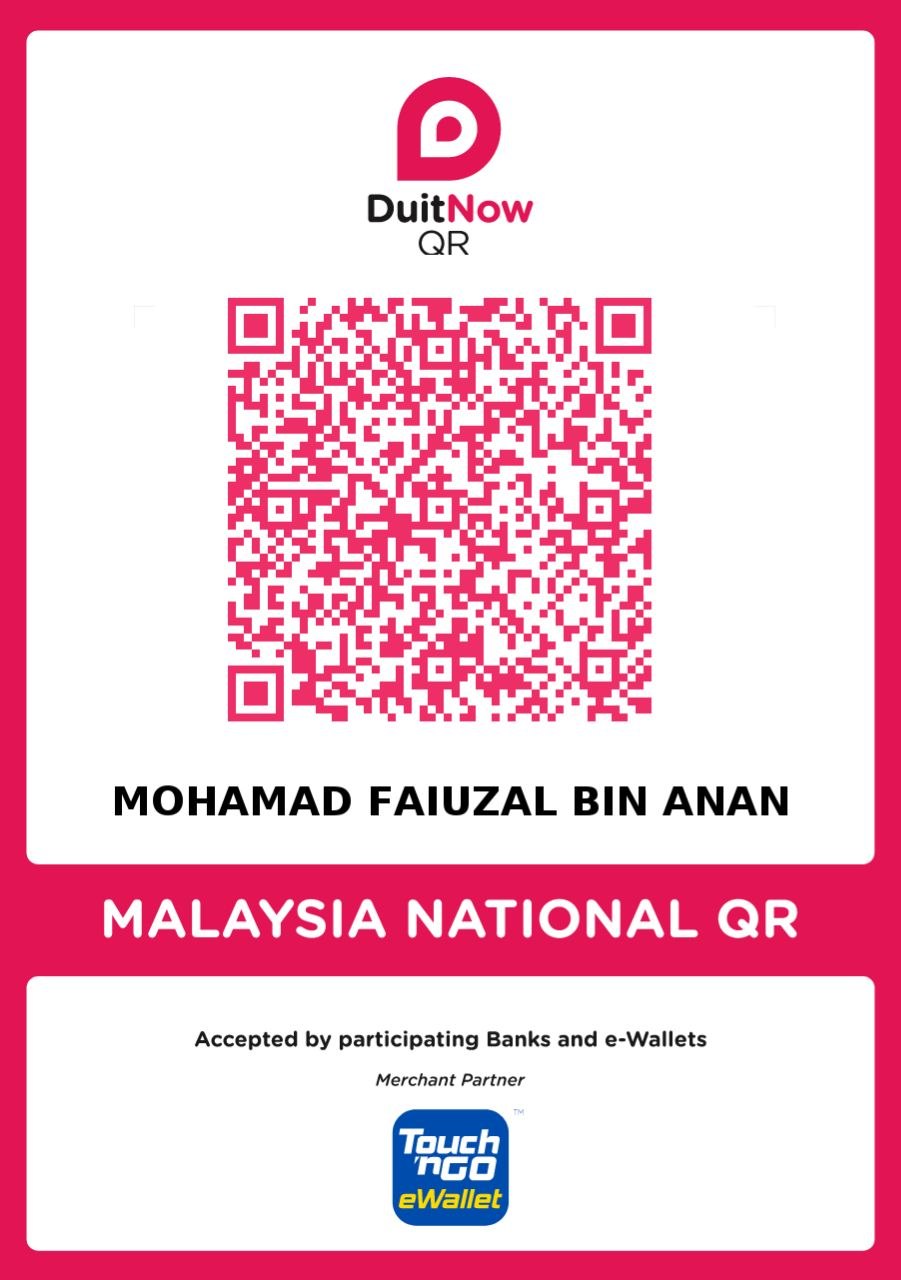
Support Hamfinity ⚡
Choose your preferred way to buy us a coffee. ☕
Include your Callsign in the transfer notes to unlock your VIP Badge (⭐)!
Choose your preferred way to buy us a coffee. ☕
Include your Callsign in the transfer notes to unlock your VIP Badge (⭐)!
Step-by-step guide to seamlessly connect WSJT-X to your QSO Hamfinity Logbook.
This system works by securely monitoring your computer's local log file. Every time you click "Log QSO" in your FT8 software, this tiny program catches it and beams it directly to the portal in real-time. Follow these 7 foolproof steps carefully.
cmd, and press Enter. A black window (Command Prompt) will appear.wsjtx_log.adi inside.At the top of the code in your Notepad, look for the CONFIGURATION section. You must change 3 things:
" "."YOUR_CALLSIGN_HERE" with your actual Callsign (Example: "9M8ZAL").\wsjtx_log.adi to the end of your path, and leave the small letter r at the front!
cmd, hit Enter).As long as the black window says "QSO Hamfinity Live Bridge Started" and is left open, it is working. Try making one QSO in WSJT-X. The moment you click "Log QSO", the black window will flash ✅ Success. You can now check your personal logbook on the QSO Hamfinity portal!
Copy all the lines of code inside this dark box and paste it into your ft8_live_bridge.py file as explained in Step 4.
import time
import os
import re
import requests

# ==========================================
# ⚙️ CONFIGURATION - CHANGE THESE 3 THINGS!
# ==========================================
# 1. The exact URL to your new API file
API_URL = "https://qso.hamfinity.com/dashboard/api_live_log.php"

# 2. Must match the secret key provided by the Admin
API_KEY = "QSOHamfinity_Live_Secret!"

# 3. Your callsign (to tell the database whose logbook to put it in)
MY_CALLSIGN = "YOUR_CALLSIGN_HERE"

# The location of your WSJT-X ADIF log file.
WSJTX_LOG_PATH = r"C:\Users\YOUR_PC_NAME\AppData\Local\WSJT-X\wsjtx_log.adi"
# ==========================================

def parse_adif_record(record_string):
    """Extracts data from a single ADIF string."""
    data = {}
    tags = ['call', 'band', 'mode', 'freq', 'rst_sent', 'rst_rcvd', 'qso_date', 'time_on', 'gridsquare']

    for tag in tags:
        match = re.search(rf'<{tag}:\d+[^>]*>([^<\s]+)', record_string, re.IGNORECASE)
        if match:
            data[tag] = match.group(1).strip()
    return data

def send_to_portal(qso_data):
    """Sends the extracted QSO to the QSO Hamfinity PHP API."""

    date_str = qso_data.get('qso_date', '')
    if len(date_str) == 8:
        date_str = f"{date_str[0:4]}-{date_str[4:6]}-{date_str[6:8]}"

    time_str = qso_data.get('time_on', '')
    if len(time_str) >= 4:
        time_str = f"{time_str[0:2]}:{time_str[2:4]}:{time_str[4:6] if len(time_str)>=6 else '00'}"

    payload = {
        'api_key': API_KEY,
        'owner_callsign': MY_CALLSIGN,
        'qso_call': qso_data.get('call', ''),
        'band': qso_data.get('band', ''),
        'mode': qso_data.get('mode', 'FT8'),
        'freq': qso_data.get('freq', ''),
        'grid': qso_data.get('gridsquare', ''),
        'rst_sent': qso_data.get('rst_sent', ''),
        'rst_rcvd': qso_data.get('rst_rcvd', ''),
        'qso_date': date_str,
        'qso_time': time_str
    }

    try:
        print(f"📡 Sending {payload['qso_call']} to QSO Hamfinity Portal...")
        response = requests.post(API_URL, data=payload)

        if response.status_code == 200:
            print(f"✅ Success: {response.text}\n")
        else:
            print(f"❌ Error {response.status_code}: {response.text}\n")
    except Exception as e:
        print(f"⚠️ Connection Failed: {e}\n")

def watch_log_file():
    """Watches the WSJT-X log file